
About this Document
Last updated: 20 March 2026
This document describes the administration capabilities of the Netaxis Fusion platform and explains how administrators use the Fusion Self Care Portal to manage services, resources, tenants, subscriptions, and integrations. It is intended for Group, Distributor, Reseller, and Tenant administrators who require a clear operational guide for navigating the platform and carrying out day-to-day administration.
Fusion is a cloud-native integration and automation platform designed to simplify service delivery for Service Providers by combining self-care, provisioning automation, number management, voice routing, and connectivity to multiple UCaaS and contact-center platforms in a single environment. This Administrator Guide focuses on how those capabilities are presented and controlled through the portal in a practical, operational context.
The platform is hosted in Oracle Cloud Infrastructure (OCI) as a standard deployment model, with optional customer-specific on-premises deployment in selected project scenarios. Voice security and routing integration are supported through Oracle SBC infrastructure.
About the Self Care Portal
The Fusion Self Care Portal is the primary administrative interface for the Fusion platform. It provides a white-labelled environment through which Service Providers, distributors, resellers, and tenants can administer UCaaS, SIP Trunking, and Contact Center services from a single operational workspace. The portal is designed to reduce manual intervention, improve service consistency, and support delegated administration across a tiered commercial model.
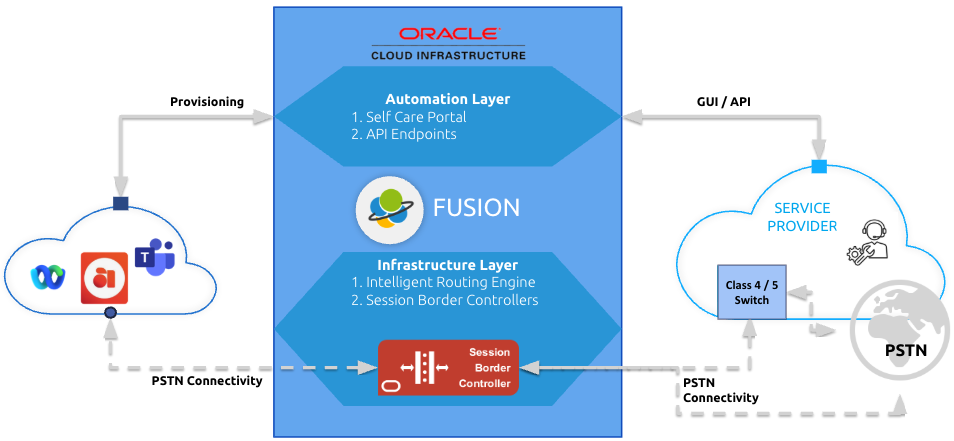
At a functional level, the portal sits in Fusion’s automation layer, which is responsible for provisioning workflows, user and number administration, and the synchronisation of service configuration with routing and call-control infrastructure. Fusion’s broader solution model consists of three layers:
- Automation layer – self-care portal and API endpoints used for onboarding, provisioning, and administration
- Infrastructure layer – intelligent routing and SBC-based call control
- Interconnect layer – provider-managed access to the telephony network
This layered design is important for administrators because it explains why portal changes can trigger automated provisioning outcomes in Microsoft Teams, SIP trunking environments, and other integrated services.
Getting Started
Before First Login
Before an administrator can work in Fusion, the correct hierarchy level and role must already exist in the platform. In a standard deployment, the Service Provider is created as a Group at the top of the provisioning hierarchy and is assigned a Group Administrator. From there, Distributors/Resellers/Tenants (and their and administrators), subscriptions & products can be established according to the intended operating model.
Fusion supports multiple administrator roles:
- Group Admin – full control over distributors, resellers, tenants, products, orders, administrators, and settings
- Distributor Admin – manages the distributor subtree and its tenants
- Reseller Admin – manages the reseller subtree and its tenants
- Tenant Admin – manages day-to-day services within the tenant, including users, numbers, trunks, and module-specific features
These role boundaries are central to how the portal behaves and what each administrator can see or change.
Logging into the Portal
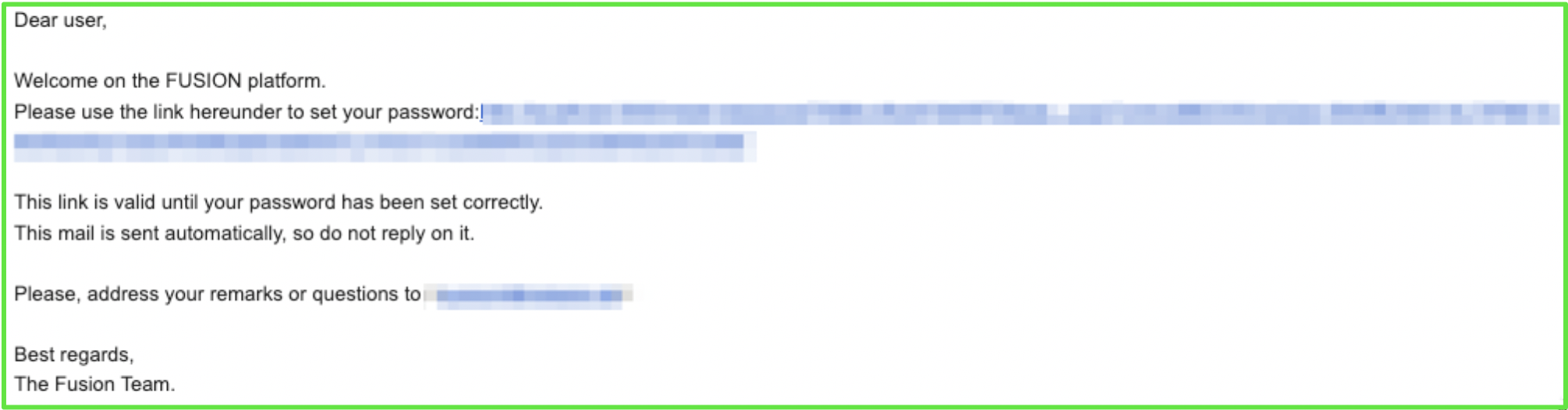
Administrators access Fusion through the portal URL provided during deployment or onboarding. Welcome emails can be used to initiate password setup, after which the administrator signs in using the assigned credentials. Depending on the identity model in use, authentication may be handled directly by Fusion or integrated with an external identity provider.
Fusion supports:
- Fusion-native identity
- Microsoft Entra ID
- OpenID Connect
- SAML / OIDC based SSO
- Native Email 2FA option
For operational security, 2FA should be enabled wherever possible, especially for Group-level and other high-privilege roles.
Getting Around the Self Care Portal
The Fusion portal presents an adaptive interface that changes according to administrator level and the current location in the hierarchy. Navigation is intended to keep the administrator aware of both where they are and what scope they are acting within.
Common Navigation Elements
Across the platform, the following interface elements are commonly available:
- Top navigation / service menus for high-level entities such as tenants, products, orders, admins, reports, audit, and settings

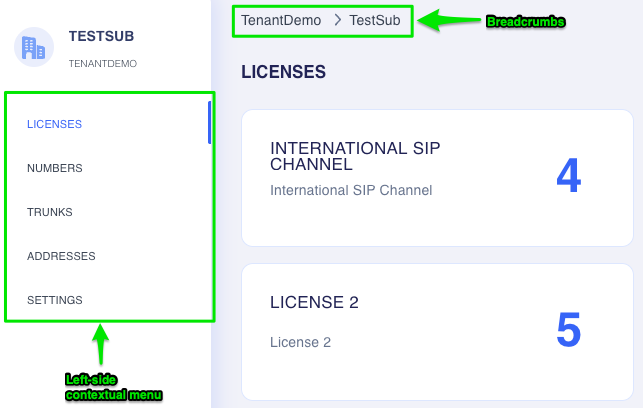
- Left-side contextual menu that adapts to the selected tenant or subscription
- Breadcrumbs, which always show the exact current location in the hierarchy. Breadcrumbs are especially important in Fusion because many resources are managed within a layered structure.
TipAdministrators should always verify the breadcrumb path before making updates, particularly when working across multiple tenants or levels.
- Language selector
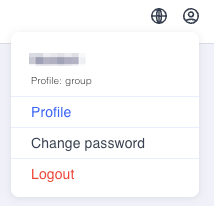
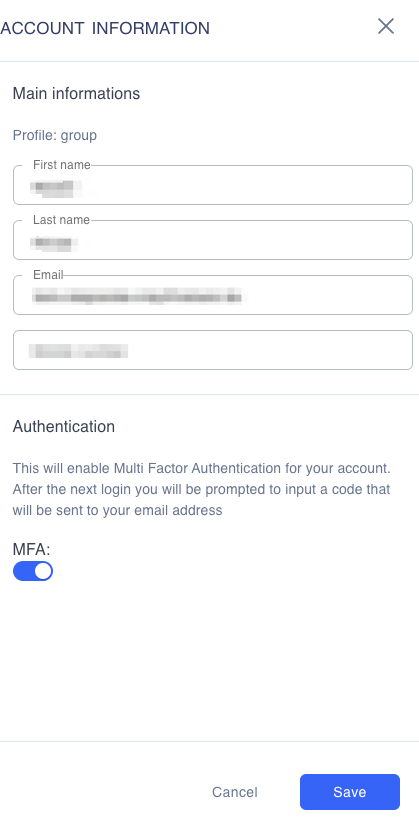
- Profile menu, including security options, 2FA, and logout
- Audit access, where enabled by role
Landing Pages by Role
The landing view differs by administrator type:
Group Admin
The Group administrator lands in the broadest operational view. This level is intended for top-level control of products, orders, branding, number management, reporting, and overall service governance across the full subtree. Summary cards commonly present information such as licenses, numbers, or trunk capacity.
Distributor and Reseller Admin
Distributor and Reseller administrators see the subtree relevant to their own level. They do not operate at full Group scope, but they can manage the downstream entities they own, including tenants and resource allocation through orders.
Tenant Admin
Tenant administrators work in a subscription-centric view focused on operational service management. Their responsibilities typically include users, numbers, trunks, templates, resource accounts, and module-specific actions such as Microsoft Teams or AnywhereNow administration.
Initial Sign-In Recommendations
When logging in for the first time, administrators should:
- Confirm that the visible hierarchy matches the expected role scope
- Review available menus and confirm that the correct modules are enabled
- Check profile and security settings, including MFA
- Validate access to tenants, subscriptions, and resources relevant to their role
- Review any existing products, orders, and settings before making operational changes
This initial validation helps prevent misconfiguration, especially in multi-tier environments.
Administrator Service Mapping
| Feature | Group Admin | Distributor | Reseller | Tenant Admin |
|---|---|---|---|---|
| Product & Order management | X | X | X | - |
| Admin management | X | X | X | - |
| Number management | X | X | X | X |
| UC module management | X | X | X | X |
| SIP Trunking | X | X | X | X |
| Branding | X | - | - | - |
| Group-level Number management | X | - | - | - |
This mapping reflects the distinction between commercial and platform governance functions at upper hierarchy levels and service-consumption functions at tenant level. Group-level administration is broader, while tenant-level administration is more operational and service-specific.
Services
The Fusion services menu bar, located at the top of the portal lists various configuration menus for the:
- Group Admnistrator - Products menu
- Group, Distributor, Reseller & Tenant Admninistrators - Orders, Admins, Reports, Audit & Settings contextual menus

Products
The Products area is used to define the resources that can later be allocated through orders. Product management is restricted to Group Administrators, because it controls the technical and commercial building blocks available downstream in the hierarchy.
Fusion supports two broad product categories:
Technical Resources
These are platform resources that can be assigned to subscriptions, such as:
- Number entitlements for different countries
- Microsoft Teams seats
- SIP trunking seats
- Other technical resources defined by the service provider
Technical resources form the foundation for downstream provisioning and entitlement.
License Types
License Types are customer's specific resources that can be ordered and assigned to subscriptions.
Customer Licenses
These are customer-specific resources used particularly in Microsoft Teams-related scenarios. They can be assigned to:
- Microsoft Teams users
- Microsoft Teams resource accounts
They are commonly used to build service packs, commercial bundles, or grouped feature sets.
Product Administration Process
A Group administrator typically manages products in the following way:
- Define the product catalogue
- Create technical resources and customer license types
- Assign unique SKUs where applicable
- Maintain consistent naming and description standards
- Periodically review usage and relevance of the product catalogue
Because products are the basis for orders and subscriptions, careful product governance is essential.
Orders
The Orders function is how resources defined in products are allocated to a specific tenant and subscription. Order creation is available to Group, Distributor, and Reseller administrators. Tenant administrators do not create consolidated orders.
An order is created against a tenant and results in a subscription containing one or more products. Multiple products can be included in a single order, which supports consolidated service activation and more efficient administration.
Typical Order Workflow
A recommended order process is:
- Identify the target tenant
- Confirm that the correct subscription exists
- Review available products and prerequisites
- Select one or more products to be allocated
- Verify quantities and compatibility
- Submit the order
- Confirm that resources are visible and available in the tenant context
- Review audit and reporting outputs as needed
Admins
The Admins area is the control point for administrator lifecycle management within the permitted hierarchy scope. It enables upper-level administrators to manage administrator accounts, review status, and adjust level assignments where appropriate.
Key functions include:
- Viewing administrator status summaries
- Resending activation links for inactive users
- Reviewing assigned levels
- Moving an administrator from one level to another where permitted
This area is especially important in delegated operational models, where access must be aligned with tenant ownership and support responsibilities.
Reports
The Reports section provides usage visibility across the accessible subtree. Depending on role, the administrator may see a view of the full group or only the resources owned at lower levels. Reports are used for operational oversight and can include consumption views for licenses, numbering, and SIP trunk capacity.
Typical reporting purposes include:
- Monitoring ordered versus consumed licenses
- Reviewing number entitlement consumption
- Assessing SIP trunk capacity
- Supporting internal operational review and downstream commercial reconciliation
Audit
The Audit function provides a chronological history of actions taken in the portal within the visible subtree. It is a key troubleshooting and governance feature because it shows what changed, where, and when. Reversion is not supported, so audit should be treated as a record and investigation tool rather than an undo mechanism.
Audit is particularly useful when:
- Investigating unexpected resource changes
- Validating who changed a configuration
- Reviewing provisioning history
- Supporting operational troubleshooting and support escalation
Settings
The Settings area provides configuration functions that vary by hierarchy level. Not every level can manage every type of setting. Higher levels typically have broader control, while lower levels see only the subset relevant to their scope.
Core settings areas include:
Configuration
General configuration and event configuration are managed here. Fusion supports provisioning event delivery through webhook and email, enabling downstream operational integration or alerting.
Voice Routing
Voice-routing settings are managed centrally and can be provisioned automatically as part of Microsoft Teams tenant onboarding and related service activation workflows.
Branding
Branding is managed at Group level and supports the white-labelled portal model. This includes elements such as logo, and language presentation.
Number Management
Number management is at Group level and provides the operational bridge between inventory and service assignment.
Calling Plan
Group-level Calling Plan is used for number-destination classification and service governance rather than Microsoft Teams-native policy management. It can support classifications such as premium numbers and follows a best-match approach to prefix evaluation. It can coexist with SIP Trunking's trunk-level calling plan controls.
Platform Hierarchy & Entities (Admin Process)
Hierarchy Overview
Fusion uses a structured multi-level provisioning hierarchy that supports both direct and indirect channel models. The hierarchy is designed to separate governance, delegation, and end-customer operations.
The hierarchy is:
- Group – service-provider level
- Distributor – optional
- Reseller – optional
- Tenant – end-customer level
All operational navigation and resource assignment in Fusion follows this structure.
Group
A Group is the highest customer-facing hierarchy level and typically represents the Service Provider. It has its own branding and its own number-management capability through NIMS. A Group can contain Distributors, Resellers, and Tenants directly, depending on the commercial model in use.
Distributor and Reseller
Distributors and Resellers are optional levels used to model indirect sales and delegated administration. They can be aligned with business structure, geography, channel relationships, or other operational segmentation.
Tenant
A Tenant is the end-customer entity. It is the operational endpoint for most day-to-day administration and contains the subscriptions and products that drive service consumption. Each tenant has a unique UUID and may also have an external billing identifier.
Subscription
A Subscription links a tenant to a specific service environment, such as a Microsoft Teams tenant. It is the level at which many technical resources are consumed and managed. Multiple products can exist within a subscription. Each subscription has a unique UUID and may also have an external billing identifier.
Product and Resource Model
Within subscriptions, products expose resources such as users, numbers, SIP trunking CAC, customer licenses, and other entitlements. This structure is what allows Fusion to support both resource governance at upper levels and operational configuration at tenant level.
Hierarchy Administration Best Practice
A recommended administrative sequence is:
- Create and validate the hierarchy
- Establish products and license types at Group level
- Create the tenant
- Create subscriptions
- Place orders for the required subscription resources
- Confirm entitlements and inventory
- Onboard the relevant service module
- Hand over day-to-day control to the appropriate lower-level administrator
This preserves governance while enabling operational delegation.
Tenant-level Subscription Management
Licenses, Numbers, Addresses and Settings are configuration elements available to the subscription of a tenant. Based on the module enabled you could have extra sections such as Trunks for SIP trunk management, MS Teams for Teams management etc.
- Licenses – shows number entitlements and licenses allocated to the tenant's subscription
- Numbers – shows available numbers and supports direct assignment to the relevant service/user of the tenant's subscription
- Addresses – supports adding of addresses individually or in bulk, as well as online address validation for regulatory requirements such as emergency calling for the tenant's subscription
- Settings – provides tenant-level custom settings relevant to the tenant's subscription
Fusion for SIP Trunking Module (Admin View – Process & Functionality)
Module Purpose
Fusion for SIP Trunking provides an automated trunking lifecycle within the portal. It allows administrators to provision, configure, and maintain SIP trunks for different target environments, including IP PBXs, IADs, Microsoft Teams, and similar destinations. The goal is to centralise trunk configuration, reduce manual SBC operations, and align commercial entitlements with technical service delivery.
Administrative Entry Points
In addition to standard configuration items for Fusion (Numbers, Addresses and Settings), the SIP Trunking module also includes:
- Trunks – the main operational area for creating and managing trunks
These menu areas work together rather than in isolation. In practice, the administrator first confirms entitlement and inventory, then allocates numbers, and finally configures or updates the SIP trunk itself.
SIP Trunk Provisioning Flow
A stepwise SIP trunk administration flow is typically as follows:
- Confirm that the tenant subscription contains the necessary SIP trunking and number entitlements
- Review available numbers and assign relevant DIDs where required
- Validate address information if regulatory or emergency-calling compliance requires it
- Open the Trunks menu and create the required trunk type
- Review the synchronisation status to confirm provisioning alignment with the SBC
- Configure high-level trunk behaviour
- Configure detailed tabs such as capacity, DIDs, calling restrictions, and access trunks
- Save and validate operational state
The trunk list shows the trunk type, current SBC synchronisation status, and deletion options. This gives administrators both lifecycle visibility and provisioning confidence.
High-Level Trunk Controls
At the top of the trunk configuration view, administrators can typically control:
Disaster Recovery
When enabled, disaster recovery redirects calls to the configured recovery destination. This takes precedence over other routing actions such as rewrite, divert, or forwarding logic. Administrators should therefore treat disaster recovery as an overriding control and configure it carefully.
Inbound / Outbound Activation
Inbound and outbound calling can be activated or deactivated at trunk level, allowing operational control during rollout, migration, troubleshooting, or staged service activation.
Trunk Configuration Tabs
Details & Settings
This tab is used for core trunk identity and presentation settings, including trunk name, billing identifier, and presentation-number formats. It also exposes synchronisation visibility with the SBC, allowing the administrator to confirm whether the configured settings have been provisioned successfully into the call-control environment.
Capacity
This tab controls simultaneous call limits. Capacity can be managed at trunk level or subscription level, depending on the service model and operational requirement. Administrators should verify where the effective limit is applied before making capacity changes.
DIDs
The DIDs tab allows the administrator to assign one or more numbers to a trunk. One DID can be marked as the pilot number. Individual DIDs can have routing-related behaviours such as:
- Rewrite – modify the number for routing purposes
- Divert – commonly used during migration to keep services reachable
- Per-DID disaster recovery – redirect calls for that specific number if needed
This gives administrators granular DID-level behaviour without requiring a separate trunk for every scenario.
Call Barring
This tab allows explicit barring of incoming and outgoing calls and is part of the earliest stages of call processing control. It is useful for hard restriction scenarios.
Block List and Allow List
These tabs operate as exceptions relative to broader call policy. A Block List can prohibit calls that would otherwise be allowed, while an Allow List can explicitly permit calls that would otherwise be blocked. This enables controlled local exceptions without requiring a full change to group-level policy.
Calling Plan
The Calling Plan classifies call destinations, for example premium numbers, by country and prefix. Options are defined at Group level and then exposed for tenant trunk configuration. Some items may require administrator approval and can appear with a lock indicator. Calling Plan evaluation is executed after the relevant group-level block-list logic.
Access Trunks
The Access Trunks tab is used to manage the underlying connection points and routing endpoints associated with a trunk. It is a critical area for resilience, failover, and detailed SBC-related configuration. Each access trunk can define settings such as:
- Locale
- Private Realm
- Access Device / Point of Presence
- Inbound / Outbound permissions
- SIP Options
- Transport type, such as UDP
This is the area where the bulk of service-provider-specific routing and connectivity characteristics are exposed to administration.
Fusion for Microsoft Teams Module (Admin View – Process & Functionality)
Module Purpose
Fusion for Microsoft Teams provides structured, tenant-based administration for Teams onboarding, user provisioning, number assignment, template-driven configuration, and resource-account management. The module is intended to reduce the complexity of working directly with Microsoft Graph, PowerShell, and related dependencies by exposing a controlled administrative layer in Fusion.
Onboarding Context
Fusion supports Microsoft Teams onboarding in both Direct Routing and Operator Connect contexts. As part of onboarding, Fusion creates the operational link between the Fusion tenant and the customer’s Microsoft tenant. After successful onboarding, routing policies can be provisioned automatically on the customer tenant to simplify initial service activation.
Microsoft Teams Administration Workflow
A typical Microsoft Teams administration sequence is:
- Confirm that the tenant subscription has the required Teams-related entitlements
- Complete or validate Teams tenant onboarding
- Confirm that the Microsoft tenant is linked to the Fusion tenant
- Review available groups and user filtering options
- Select the Microsoft groups whose users should be managed in Fusion
- Review, add, or bulk-manage users
- Apply templates where standardised provisioning is required
- Assign numbers, customer licenses, and voice-related properties as needed
- Manage resource accounts for service entities such as call queues and auto attendants
This flow is designed to move from entitlement and linkage into operational user administration.
Groups and Users
Fusion can display existing Microsoft users already available in the customer’s Active Directory / Microsoft environment, and it supports management based on selected groups. Multiple subscriptions can be linked to the same Microsoft tenant using different filters, which allows administrators to organise the customer view according to operational or business structure.
Administrators should use group filtering deliberately. It allows the service view in Fusion to reflect the intended management boundary rather than exposing all users indiscriminately.
User Provisioning and Bulk Management
Fusion supports both individual and bulk user management. Bulk upload functionality is available for managing multiple Microsoft users at once, which is especially useful during onboarding, migration, or large-scale service changes.
When managing users, the administrator typically works through the following process:
- Select the relevant tenant subscription
- Filter the visible user scope using groups where needed
- Review existing users and license state
- Add a new user or select existing users for update
- Use UPN as the primary identifier when updating users in bulk
- Assign numbers and service-related attributes according to entitlement and template logic
- Confirm successful provisioning
Fusion also checks the Microsoft license associated with each user, which helps ensure alignment between service assignment and the user’s eligibility to be voice-enabled.
Templates
Templates provide a standardised way to apply the same configuration pattern to multiple users. Within a subscription, a template can include:
- Location
- License
- Voice routing policy
- Groups
- Customer licenses
Templates support both rapid onboarding and consistency of service configuration. They can also be used during bulk provisioning, which reduces repetitive manual work and improves governance.
Number Assignment
Numbers can be assigned to Teams users depending on Microsoft license compatibility and voice-enablement requirements. Once a number is correctly assigned and the user is voice-enabled, the Microsoft Teams client can be used for external calling.
Resource Accounts
Resource accounts in Microsoft Teams are used for service entities such as Call Queues and Auto Attendants. Fusion supports the management of these resource accounts and automates the assignment of service attributes so that they can be reached externally. Administrators can manage resource-account properties such as phone number, voice policy, customer license, and location, while the creation of the underlying service constructs themselves is more limited in scope.
Post-Onboarding Visibility
Once onboarding is complete, the module provides visibility into key tenant subscription details, including:
- Tenant ID
- Domain
- Mode
- Routing-policy provisioning status
This gives administrators an immediate summary of the tenant context and provisioning state.
Fusion for AnywhereNow Module (Admin View)
Module Purpose
Fusion for AnywhereNow extends the Microsoft Teams-integrated service environment by exposing administration for AnywhereNow Cloud Contact Center inside Fusion. The focus is on linking existing AnywhereNow structures and automating the provisioning and maintenance of agents and supervisors associated with those structures.
Customers subscribe separately to AnywhereNow and perform core contact-center queue, omnichannel, and reporting configuration in the AnywhereNow portal itself. Fusion then provides operational integration for agent and supervisor provisioning against existing sites and queues.
Availability and Entry Point
After the Microsoft tenant has been onboarded, the AnywhereNow tab becomes available in the relevant tenant subscription view. This dependency is important: AnywhereNow administration in Fusion follows Teams onboarding and is exposed as part of that service context.
AnywhereNow Administration Flow
A typical stepwise process is:
- Open the relevant tenant subscription after Microsoft Teams onboarding has been completed
- Select the AnywhereNow tab
- Link the required root site
- Allow the platform to automatically load the associated subsites
- Filter the visible sites to create a relevant operational view
- Select a site or subsite to manage
- Review the current list of agents and supervisors
- Link an existing agent or supervisor where required
- Update an existing assignment where role or details have changed
- Remove a user from the site if they should no longer be associated
- Add a new agent with the appropriate skills and scores
Root Sites and Subsites
The first operational action is to link a root site. Fusion then automatically loads the subsites underneath that root site. Administrators can filter those subsites to create a custom management view, which is especially useful in larger or geographically distributed deployments.
Agent and Supervisor Administration
Once a site is selected, administrators can:
- List agents and supervisors
- Filter the visible entries
- Link an existing agent or supervisor to the site
- Update an existing agent or supervisor
- Remove an agent or supervisor from the site
Adding a New Agent
The add-agent form includes role selection and skill-score assignment. The skill definitions themselves are maintained in AnywhereNow, but Fusion allows the administrator to assign those skills and scores when linking the user operationally into the site context. This allows Fusion to function as the operational provisioning layer while AnywhereNow remains the source of queue and skill-model design.
Troubleshooting and Support
Fusion includes audit and diagnostic support features, but administrators should take a structured approach to troubleshooting.
Recommended Troubleshooting Sequence
- Confirm the administrator is operating in the correct hierarchy level and tenant context
- Review breadcrumbs to verify location
- Check entitlement and product assignment
- Confirm subscription linkage and module availability
- Review Audit for recent changes
- Check event / webhook configuration if downstream integrations are expected
- Verify synchronisation indicators, especially in SIP trunking scenarios
- Escalate with supporting audit evidence if the issue is platform-side or integration-specific
Support Position
Release management and support follow Netaxis operational standards. For effective support handling, administrators should retain clear records of:
- the affected hierarchy level
- the tenant, subscription and entity involved
- the affected module
- the time of change or failure
- any recent order, provisioning, or settings changes
- relevant audit entries
This improves fault isolation and reduces resolution time.